This guide explains how to add your Prohost email account to the Mail app on your iPhone using IMAP. Once configured, you can securely send, receive, and manage your emails directly from your iPhone.
Step 1: Open Mail Account Settings
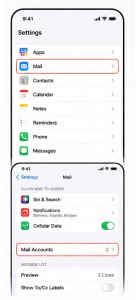
Open the Settings app on your iPhone.
Go to Apps → Mail → Mail Accounts, then tap Add Account.
Step 2: Choose Other
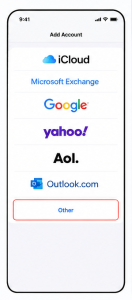
Tap Other, then select Add Mail Account.
Step 3: Enter Your Account Information
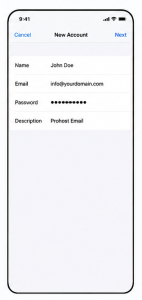
Enter the following information:
Name
Email Address
Password
Description
Then tap Next.
Step 4: Select IMAP and Enter Your Mail Server Information
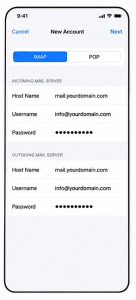
Select IMAP, then enter the following information:
Incoming Mail Server
Host Name:cloud.prohost.sa
User Name: Your full email address
Password: Your email account password
Outgoing Mail Server
Host Name:cloud.prohost.sa
User Name: Your full email address
Password: Your email account password
After entering the required information, tap Next.
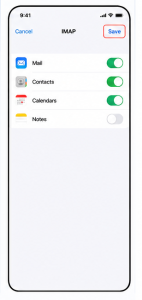
Step 5: Save the Account
Wait while your iPhone verifies your account settings.
Once the verification is complete, tap Save.
Result
Your Prohost email account has been successfully added to the iPhone Mail app. You can now send, receive, and manage your emails directly from your iPhone.
## نظرة عامة
يوضح هذا الدليل كيفية إضافة حساب البريد الإلكتروني الخاص بك من Prohost إلى تطبيق Mail على جهاز iPhone باستخدام بروتوكول IMAP، مما يتيح لك إرسال واستقبال وإدارة رسائل البريد الإلكتروني مباشرة من جهازك.
—
## الخطوة 1: فتح إعدادات حسابات البريد
افتح تطبيق **Settings** على جهاز iPhone.
انتقل إلى **Apps** → **Mail** → **Mail Accounts**، ثم اضغط على **Add Account**.
—
## الخطوة 2: اختيار Other
اضغط على **Other**، ثم اختر **Add Mail Account**.
—
## الخطوة 3: إدخال بيانات الحساب
أدخل البيانات التالية:
* الاسم (Name)
* عنوان البريد الإلكتروني (Email Address)
* كلمة المرور (Password)
* الوصف (Description)
ثم اضغط **Next**.
—
## الخطوة 4: اختيار IMAP وإدخال بيانات خادم البريد
اختر **IMAP**، ثم أدخل البيانات التالية:
### البريد الوارد (Incoming Mail Server)
* **Host Name:** `cloud.prohost.sa`
* **User Name:** عنوان بريدك الإلكتروني بالكامل.
* **Password:** كلمة مرور البريد الإلكتروني.
### البريد الصادر (Outgoing Mail Server)
* **Host Name:** `cloud.prohost.sa`
* **User Name:** عنوان بريدك الإلكتروني بالكامل.
* **Password:** كلمة مرور البريد الإلكتروني.
بعد إدخال البيانات، اضغط على **Next**.
—
## الخطوة 5: حفظ الحساب
انتظر حتى يتحقق جهاز iPhone من إعدادات الحساب.
بعد اكتمال التحقق، اضغط على **Save**.
—
## النتيجة
تمت إضافة حساب البريد الإلكتروني الخاص بك من Prohost بنجاح إلى تطبيق Mail على جهاز iPhone، ويمكنك الآن إرسال واستقبال وإدارة رسائل البريد الإلكتروني بسهولة.