This guide explains how to configure your Prohost email account in Microsoft Outlook using IMAP. IMAP keeps your emails synchronized across all your devices, allowing you to access the same mailbox from your computer, phone, or tablet.
Step 1: Add Your Email Account
Open Microsoft Outlook.
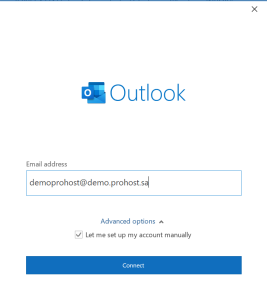
If this is your first time opening Outlook, the Add Account screen will appear.
Enter your email address, click Advanced options, enable Let me set up my account manually, then click Connect.
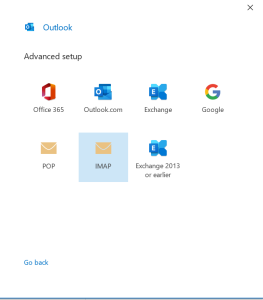
Step 2: Select IMAP
Choose IMAP as the account type.
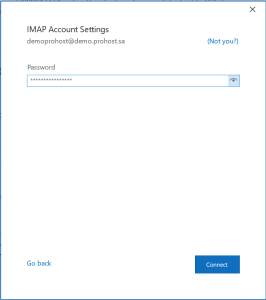
Step 3: Enter Your Password
Enter your email account password, then click Connect.
Step 4: Configure the Mail Server Settings (If Required)
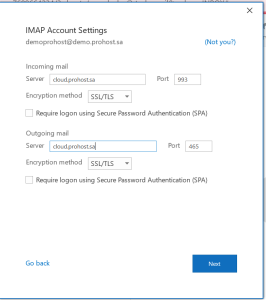
If Outlook cannot automatically detect your email settings, enter the following mail server settings manually.
Incoming Mail (IMAP)
Server: cloud.prohost.sa
Port: 993
Encryption method: SSL/TLS
Outgoing Mail (SMTP)
Server: cloud.prohost.sa
Port: 465
Encryption method: SSL/TLS
Then click Connect.
Step 5: Complete the Setup
Wait while Outlook verifies your account settings.
Once the setup is complete, click Done.
Result
Your Prohost email account has been successfully configured in Microsoft Outlook using IMAP and is ready to send and receive emails.
نظرة عامة
يوضح هذا الدليل كيفية إعداد حساب البريد الإلكتروني الخاص بك من Prohost على Microsoft Outlook باستخدام بروتوكول IMAP، مما يتيح مزامنة رسائل البريد الإلكتروني بين جميع أجهزتك.
الخطوة 1: إضافة حساب البريد الإلكتروني
افتح برنامج Microsoft Outlook.
إذا كانت هذه أول مرة تفتح فيها البرنامج، ستظهر شاشة Add Account.
أدخل عنوان بريدك الإلكتروني، ثم اضغط على Advanced options، وفعل خيار Let me set up my account manually، ثم اضغط Connect.
الخطوة 2: اختيار IMAP
اختر IMAP كنوع الحساب.
الخطوة 3: إدخال كلمة المرور
أدخل كلمة المرور الخاصة بحساب البريد الإلكتروني، ثم اضغط Connect.