
Overview
This guide explains how to change the password for your cPanel account.
Changing your password regularly helps improve the security of your hosting account.
Steps
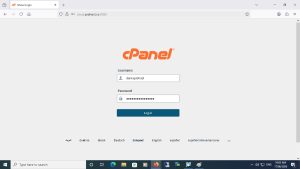
Step 1: Log in to cPanel
Log in to your cPanel account using your current username and password.
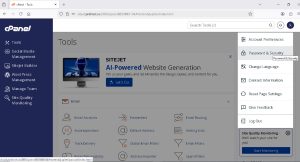
Step 2: Open Password & Security
From the cPanel dashboard, click Password & Security under the Preferences section.
Step 3: Enter Your Current Password
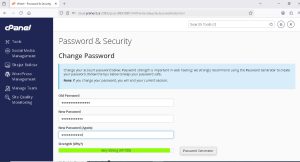
Enter your current password in the Old Password field.
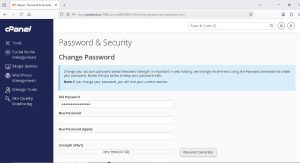
Step 4: Create a New Password
Enter a new password in the New Password field.
You can either:
Create your own password manually.
Click Password Generator to automatically generate a strong and secure password.
If you use the Password Generator, make sure to save the generated password in a secure location.
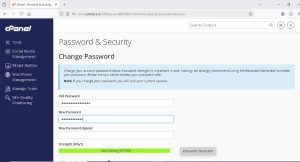
Step 5: Confirm Your New Password
Re-enter the new password in the confirmation field.
Step 6: Enable Digest Authentication (Optional)
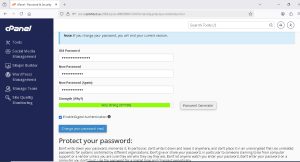
You may enable Digest Authentication for an additional layer of authentication security.
In most cases, if your website is already using HTTPS/SSL, enabling this option is not required.
Step 7: Save Your Changes
Click Change Password Now to save your new password.
Result
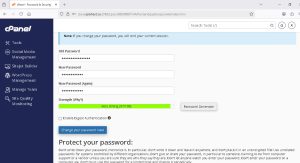
Your cPanel password has been successfully updated.
Use your new password the next time you log in to cPanel.